Ever tried to share a PDF but realized it was a hassle because not everyone can open or navigate one. Maybe you needed one page from a report, a chart from a slide deck, or even just a scanned receipt, but sending the entire file felt unnecessary. Turning a PDF into an image can save the day in such cases.
Turning a website into a PDF keeps its layout and accessibility intact. Changing a PDF into an image makes it more portable, easier to view on any device, and simple to share. Whether it’s a PNG or JPEG, images embed open everywhere and don’t need any fancy software to work.
This post looks at why turning a PDF into an image is useful and how PDFGPT makes it quick, easy, and stress-free. No need for downloads or accounts, just simple converting.
Why Convert PDF to Image?
PDFs are excellent for keeping layouts intact, but they’re not always the easiest to use. Turning them into images fixes many of these common struggles.
Easier to View Anywhere
Many devices lack PDF readers, but all of them open images with no trouble. When you change a PDF to a PNG or JPEG, it works on laptops, phones, or tablets with no extra apps needed.
Sharing is Simpler
You can attach images to emails, send them in chat apps, or upload them on websites. Instead of a heavy PDF, send a simple image that loads .
Pull Out Specific Pages or Parts
Want just one page from a long PDF? Turning that page into an image makes it simple to share without sending the whole file.
Add to Slideshows or Online Posts
Putting charts or designs from PDFs into presentations or social media works better as images. They fit in slides, Word docs, or online posts.
Keep the Look Intact
The image will match the original PDF. No worries about messed-up layouts or missing fonts.
How to Convert PDF to Image Online Using PDFGPT
Gone are the days of downloading complicated software or manually screenshotting each page. PDFGPT makes it quick and effortless to turn your PDFs into clean, high-quality images.
Convert PDF to Image in 5 Simple Steps:
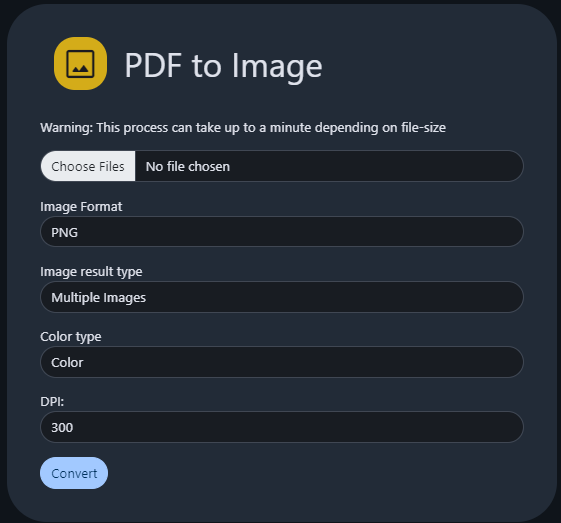
Step 1: Visit the PDFGPT PDF to Image Tool
Head over to PDFGPT’s website and find the tool built to transform PDFs into image formats such as JPEG or PNG.
Step 2: Upload Your PDF File
Pick the PDF you want to convert from your device. It could be a receipt, an eBook, or even a work document. Upload it to the tool.
Step 3: Choose Your Image Format
Decide if you need the output as a PNG to get better quality or as a JPEG to make the file smaller.
Step 4: Press “Convert to Image”
PDFGPT turns your PDF pages into images while keeping the clarity intact.
Step 5: Download Right Away
You won’t need to wait or sign up. Grab your converted images on your device or store them in the cloud.
Why Use PDFGPT to Convert PDF to Image?
PDFGPT doesn’t just convert files, but it is also AI PDF summarizer, ensures you get reliable results with minimal effort. Here’s why it stands out:
- No Downloads Required
You can use this in your browser without any need to install software or plugins. - Free with Clear Results
PDFGPT doesn’t put watermarks on your images or hide extra charges. The images created remain clear and professional-looking. - Compatible with All Devices
PDFGPT works well on any device, whether it’s a phone, tablet, or laptop, and adjusts to your screen size . - Your Data Stays Safe
The system erases your files after processing to keep your information private. - Quick and High-Quality Conversions
It handles conversions in just seconds and delivers clean and sharp images that look great. - More than Just a Converter Along with turning PDFs into images, PDFGPT allows users to summarize content, reduce file sizes, break apart documents, or turn web pages into PDFs, all in one place.
Types of PDFs You Can Convert to Images
PDFGPT works with virtually any kind of PDF, including:
- Reports and Research Papers – Change specific sections to images to add to slideshows or other materials.
- Receipts and Bills – Save them as pictures to make sharing or organizing them simpler.
- eBooks and Notes – Turn pages into image files for offline reading whenever needed.
- Charts and Diagrams – Send the visuals without attaching the full document.
- Forms and Applications – Let others view copies even if they don’t have a program to read PDFs.
- Certificates and IDs – Keep or send them in formats everyone can open.
Final Thoughts
PDFs work well, but there are times when using a lighter and more adaptable format is better. Turning PDFs into images allows you to access your content, share it without hassle, and use it in various situations. PDFGPT simplifies the process by removing concerns about extra software, watermarks, or waiting. You can upload your PDF, convert it, and get your images right away.