Have you shared multiple images and found them scattered, compressed, or of poor quality? Whether it’s receipts or ID proofs, an assignment, or a design file, images are convenient for capturing data but not the best way to store or share it. They’re formatted differently, with size differences, and when shared, many images together tend to get messy. That is when converting an image to a PDF is a solution.
PDFs are accepted everywhere, can be stored easily and maintain formatting perfectly. However, to Convert Image to PDF means your files are now organized, professional, and ready to share anywhere. In this article I will go over the benefits of converting images to PDFs, how to do it, and show you how PDFGPT makes it simple, quick, accurate and secure.
Why Convert Image to PDF?
Images are flexible, but PDF makes everything much more practical when it comes to documentation. Here are some reasons why converting images to PDF is a great idea:
Unified Format: Rather than having to manage multiple image files, you can compile your image files into a single PDF document. This will create unity and lessen the chance of files getting intermixed.
Professional Presentation: PDF’s provide a clean, polished appearance that is suitable for submissions of documents, reports, and other official proofs.
Easy to share and print: PDF file sizes are lightweight and device optimized when sharing via email, messaging app, or cloud storage, they do not lose quality when printing.
Cross-Platform: PDFs open on any device, including laptops, mobile devices, or tablets, and keep their alignment, and quality across devices.
More secure: PDFs can be password-protected; they are much more secure than image files (ex., JPG).
How to Convert Image to PDF Using PDFGPT
Manually merging images into PDFs can be tedious. PDFGPT makes it quick with AI-powered conversion, giving you high-quality PDFs in seconds.
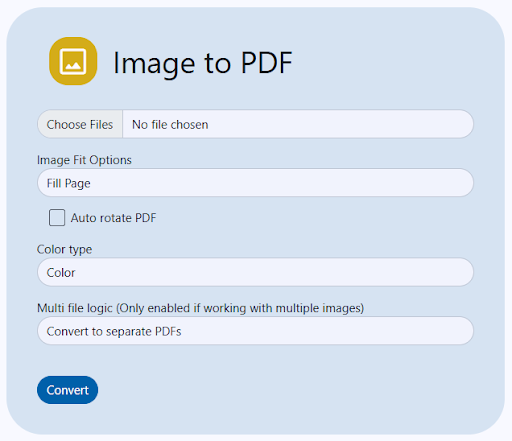
Convert Image to PDF in 5 Simple Steps
Step 1: Go to PDFGPT’s image-to-PDF option.
Go to the PDFGPT website and choose the image-to-PDF option.
Step 2: Upload your image(s).
Select images to upload, and they can be JPEG, PNG, or other formats.
Step 3: Organize and Edit.
Rearrange the images, change the format, margins, or orientation of your images as necessary.
Step 4: Click the “Convert to PDF” button.
Let PDFGPT process the images. It quickly creates a professional PDF and aligns it properly.
Step 5: Download the PDF file.
After it finished generating the PDF as soon as it’s available to you, download your PDF easily. Now you can share it, print it, or store it without worrying about formatting problems.
Why Use PDFGPT for Image-to-PDF Conversion?
PDFGPT isn’t just a file converter; it’s an AI PDF summarizer platform built for convenience and accuracy.
- No Installation Required: Use directly in your browser.
- Fast and Trustworthy: Convert images to PDFs in seconds.
- Secure and Private: Uploaded images are deleted after processing.
- Mobile, Desktop, Tablet: Converts on mobile, desktop, or tablet.
- Batch Conversion: Easy to convert and combine images into one PDF file.
- More than a Converter: Besides converting images to PDF, PDFGPT does summaries of PDFs, extracts data, and supports multiple file formats.
Types of Images You Can Convert to PDF
PDFGPT supports a wide variety of images, making it useful for personal, academic, and professional needs:
- Receipts and Bills: convert your expense receipts into PDFs for accounting or reimbursement purposes.
- Official Documents: Keep scanned identity proofs, certificates, or legal documents in a protected PDF format.
- Assignments and Class Notes: combine handwritten notes or a class assignment into a PDF.
- Designs and Creative Work: keep your sketches, designs, and creative work in PDF format to preserve quality.
- Medical Records: combine your scanned prescriptions and reports into a PDF for easy use.
Advantages of Converting Images to PDFs
- Organization: Hold many images in one organized file.
- Quality: Keeps image quality and formatting intact.
- Scalability: A PDF can contain many images; you can combine dozens of images into one PDF without any hassles.
- Universality: A PDF can be opened on any system, without needing specific apps.
- Archiving: A great way to keep records and backups in a compact form.
Final Thoughts
While images are great for capturing moments or information, they can be difficult to manage, especially when you have many of them. Converting images to PDFs solves this problem by offering a neat, professional, and universally accepted format.
With PDFGPT, the process is effortless. Upload your images, customize, and download a perfectly formatted PDF in seconds, secure, reliable, and hassle-free.