Have you ever taken too long to render a webpage printable or saved an HTML file as close to the original as possible? From capturing an online receipt, preserving a blog post, or saving a report you’ve generated from a website, a bad layout can make for some very inconvenient broken elements. That’s why a good HTML to PDF converter is now more than helpful, it’s a requirement.
In this digital-first world, converting HTML to PDF is no longer just keeping a copy, it’s also keeping the structure, style, fonts, and interactive elements in place. The emergence of applications like PDFGPT has made this process super easy, fast, and most importantly, free. No installation, no signup, just an HTML to PDF conversion in seconds.
This tutorial you are about to follow will explain why HTML-to-PDF conversion matters, how to do it in a few steps, and how PDFGPT makes the whole process even easier and smarter.
Why Convert HTML to PDF?
HHTML files are ubiquitous. They are the backbone of websites, web apps, dashboards, and online documentation. However, HTML is not the best format to share, archive, or print. PDF is the obvious choice – here are some reasons to convert HTML to PDF:
- Preserve Web Layouts: Retain fonts, images, styles, and spacing exactly as they appeared on the web.
- Offline Access: Refer to web pages later without the need for internet access.
- Professional Documents: Turn unstructured, online content into a clean, shareable document.
- Archiving & Record Keeping: Store time-stamped, tamper-proof files of a webpage or report.
- Print Reports or Forms: Record online, dynamic web content like order confirmations or user dashboards in a print-friendly record.
Whether you are a developer, marketer, business user, or student, converting HTML to PDF gives you control of how you store and share content.
How to Convert HTML to PDF Online for Free
You won’t need any advanced equipment or programming skills. Using tools like PDFGPT, the process of converting your HTML file or webpage into a PDF is as simple as uploading a file or pasting a URL.
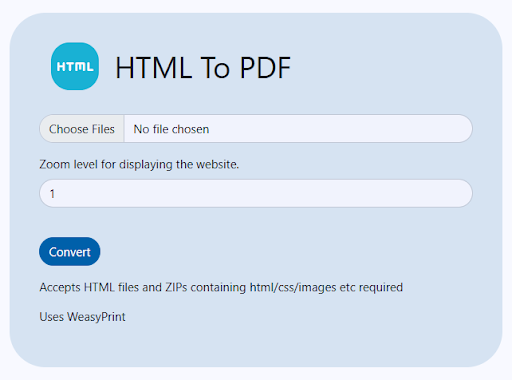
Convert HTML to PDF in 5 Easy Steps:
Step 1: Open PDFGPT’s HTML to PDF Converter
Open the PDFGPT HTML to PDF tool page. You will have a clear, simple interface with no distracting clutter.
Step 2: Upload HTML or Paste a URL
You can either upload an .html file that is on your device or paste in the link for a live webpage you want to convert. The tool has the capacity for both options, so they have given you the flexibility to choose what works for you.
Step 3: Preview and Adjust Settings
If you would like, you can preview or change your margins, or change the paper size or page orientation before converting your HTML. This will help ensure that the output PDF will match your overall purpose for the file, whether it is for printing or intended for viewing on a mobile device.
Step 4: Click “Convert to PDF”
With one click the tool will process the content and render it into PDF format, while maintaining the layout, links, fonts, and images that were in the original HTML file or webpage.
Step 5: Download Your PDF File
You will have extremely fast access to your file, and get the option to download it to your device or save it to your cloud drive. You don’t even have to log in or create an account.
Why Use PDFGPT to Convert HTML to PDF?
While many tools can do this, PDFGPT is also an AI PDF summarizer does it quickly, simply, and with whatever formatting you want. It’s not merely a converter, it’s a complete document tool with privacy first features.
1. 100% Free and No Watermarks
You can convert as many files as you like without limits on file size or usage. You will not see any logos or annoying watermarks on your final PDF file.
2. Retains Original Layout and Styles
PDFGPT preserves CSS, images, tables, and responsive elements that are often ignored by generic converters so that your PDF looks like the version on the web.
3. Lightning Fast & Cloud-Based
No need to install software or extensions, with PDFGPT all files are converted in the cloud, with fast processing, even for long pages or complex cases.
4. Mobile and Desktop Ready
The features of PDFGPT and the conversion work seamlessly on Windows, macOS, Android, or iOS. PDFGPT works smoothly in all modern browsers.
5. No Signup Required
With PDFGPT, you do not need to sign up for an account or provide your email. You can upload, convert and download without logging in or signing up.
6. Secure and Private
After processing, files you upload to PDFGPT are encrypted and will be deleted from our servers. You can be sure that your documents will not be used or seen anywhere else.
7. More Than Just HTML to PDF
PDFGPT is an all-in-one PDF toolkit that can help you with all things PDF. In addition to HTML to PDF conversion, PDFGPT allows for FREE PDF merging, splitting, compressing, annotating, and even PDF summarizing with AI.
When Should You Convert HTML to PDF?
Not sure if this tool is for you? Here are some common examples of how this may be useful to you:
- Save your Online Orders: You can convert your order summary to a PDF receipt for safekeeping.
- Capture Web-Based Reports: You can download popular reports, such as analytics dashboards or app data, into a PDF.
- Create Print Resources: You can easily turn web pages or blogs into educational or training materials.
- Client Deliverables: You can easily package online presentations, proposals, or designs as sleek PDF reports.
- Legal and compliance records: You can store HTML-based documents as an archived copy with a time-stamped PDF for your records.
Final Thoughts
The need to accurately convert HTML to PDF is more critical than ever. Whether you want to use professionally and publicly shareable documents, archive content, or simply make your web content easier to use offline, PDFGPT is a fast and hassle-free way to do this.