Have you ever struggled to send multiple photos in one go, compile visual documents for printing, or archive screenshots as a single, neat file? Whether it’s digitizing handwritten notes, submitting a scanned form, or sharing product images in one document, loose image files can quickly become a messy hassle. That’s why having a reliable image to PDF converter isn’t just helpful anymore, it’s essential.
In a world where visuals matter just as much as text, converting images (JPG, PNG, BMP, etc.) to PDF allows for better organization, professional presentation, and easy sharing. Tools like PDFGPT make this process simple, fast, and completely free. There are no installations or signups, just smooth conversion from image to PDF in seconds.
This tutorial will walk you through why converting images to PDF matters, how to do it in just a few steps, and how PDFGPT makes the entire process smarter and easier.
Why Convert Images to PDF?
Images are great for capturing information, but they aren’t always ideal for sharing or printing, especially when you have multiple files. Here’s why turning them into PDFs is a better option:
- Combine Multiple Images: Easily merge several image files into a single, organized document.
- Professional Formatting: Present your visual content in a structured, consistent layout suitable for business or formal use.
- Universal Compatibility: PDFs open seamlessly across all devices and operating systems without format issues.
- Better Print Control: PDFs allow for page sizing, orientation, and margins to be set uniformly.
- Reduced File Chaos: Store photos, scans, and screenshots in one file instead of managing multiple image formats.
Whether you’re a student organizing assignments, a business professional creating a report, or just sharing your travel pictures, converting images to PDF gives you more control and cleaner results.
How to Convert Images to PDF Online for Free
You don’t need fancy editing software or technical knowledge. With PDFGPT, converting images into a polished PDF is as easy as uploading them.
Try PDFGPT’s Free Image to PDF Tool Now
Convert Images to PDF in 5 Easy Steps:
Step 1: Visit PDFGPT’s Image to PDF Converter
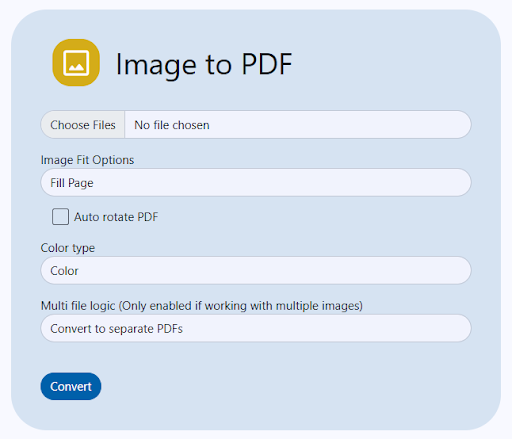
Head to the image-to-PDF tool on PDFGPT. You’ll be greeted with a clean interface that’s simple and distraction-free.
Step 2: Upload Your Image Files
Select one or multiple image files from your device. PDFGPT supports common formats like JPG, PNG, BMP, and more.
Step 3: Arrange and Customize
Drag and drop to reorder images if needed. You can also adjust page size, margins, or orientation (portrait/landscape) before converting.
Step 4: Click “Convert to PDF”
With a single click, your selected images are processed and neatly compiled into a PDF, preserving image quality and layout.
Step 5: Download or Save Your PDF
Your PDF will be ready to download instantly. Save it to your device or cloud without the need to log in or register.
Why Use PDFGPT to Convert Images to PDF?
There are many tools that convert images to PDF, but PDFGPT stands out with speed, flexibility, and Secure. It’s more than just a converter; it is also an AI PDF summarizer and a complete PDF toolkit.
- 100% Free, No Watermarks
Convert unlimited files with zero restrictions or intrusive watermarks on your final PDF. - Keeps Image Quality Intact
PDFGPT ensures your visuals remain clear and crisp in the final PDF, no pixelation or compression. - Fast, Cloud-Based Processing
No installations required. Everything is processed in the cloud for quick and easy file generation. - Supports Batch Conversion
Upload multiple images and convert them into a single PDF in seconds, no more one-at-a-time hassles. - Mobile and Desktop Friendly
Use it on your laptop, tablet, or phone. PDFGPT is fully responsive and works across all modern browsers. - No Signup or Email Required
Get started immediately. No login, email, or account creation necessary. - Secure and Private
All uploaded files are encrypted, processed, and deleted shortly after download. Your content is never stored or shared. - More Than Just Image to PDF
In addition to image conversion, PDFGPT offers tools to merge, compress, split, annotate, summarize, and convert PDFs, all in one place.
When Should You Convert Images to PDF?
Still wondering if this is for you? Here are some practical use cases:
- Scan & Submit Assignments: Turn handwritten notes or exam papers into a single digital document.
- Save Receipts or Bills: Easily archive photos of receipts or utility bills in one PDF for expense tracking.
- Create Portfolios or Reports: Combine multiple product photos, artwork, or sketches for client presentations.
- Legal & Administrative Use: Submit ID proof, filled forms, and documents in a single file without altering format.
- Travel & Events: Bundle travel documents, itineraries, or event images into one easy-to-share PDF file.
Summary
Converting images to PDF with PDFGPT, an AI PDF summarizer, is now a go-to need in our digital lives, whether for business, school, or personal convenience. PDFGPT makes the process effortless, with fast uploads, no signups, clean results, and privacy-first handling. Say goodbye to disorganized image files and hello to sleek, shareable PDFs.