Today, we’re surrounded by gigantic PDFs, research papers, reports, ebooks, and many more. Though these documents can be precious, reading and extracting useful information from them manually is time-consuming and a chore. This is where PDFGPT, your AI-powered PDF Summarizer, comes in. With PDFGPT, you can transform your PDF experience by allowing you to ask questions and receive concise answers directly from the document’s content.
We shall guide you step by step in the effective usage of PDFGPT and the unlocking of all your potential through your PDF documents with this cutting-edge AI Summarizer.
What is PDFGPT?
PDFGPT is a tool that uses AI to read, analyze, and answer questions based on the content of your uploaded PDF documents. Acting as your personal AI PDF Summarizer, it allows you to query the document and receive insightful, context-aware answers, saving you hours of manual reading.
How to Use PDFGPT?
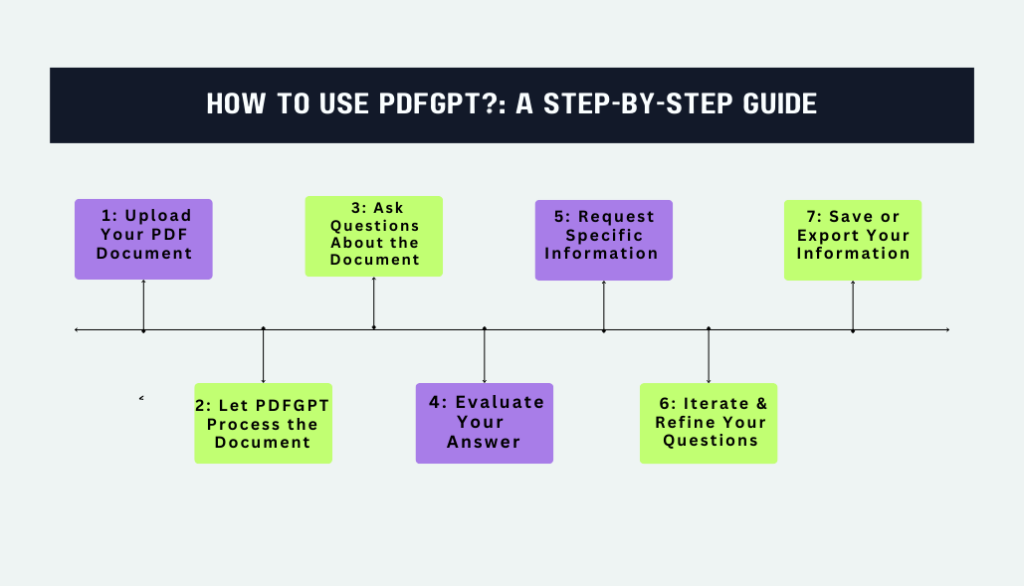
Step 1: Upload Your PDF Document
The first step is to upload the PDF you wish to analyze. Whether it’s a detailed research paper, a corporate report, or an eBook, PDFGPT can handle it all.
- Locate the PDF: Find the document on your device.
- Upload the File: Using the easy-to-use “Upload” button on the platform, select your file and upload it for processing.
- Once uploaded, PDFGPT will start to process the PDF and extract its content. This can take a few moments depending on the size of the document.
Step 2: Let PDFGPT Process the Document
PDFGPT, your AI PDF Summarizer, needs some time to read and process the content of the document. It extracts text, tables, images, and other relevant information to ensure you can ask about everything in the document.
During this time, the system will get ready to answer your questions with the most relevant information, ensuring that you can interact with it smoothly.
Step 3: Ask Questions About the Document
Now it’s time for the fun part, interacting with the document! After the document has been processed, you can begin asking PDFGPT specific questions. The beauty of this tool is that you can ask about anything in the document without needing to read through it all.
Here are some examples of the kinds of questions you can ask:
- “What is the summary of Chapter 3?”
- “Section 2.5 What is the main takeaway?”
- “Could you summarize what this report conclusion is saying?”
- “What does page 12 graph mean?”
PDFGPT will analyze what your document contains and give you quick, direct answers tailored to your question.
Step 4: Evaluate Your Answer
Once PDFGPT produces an answer, you can read through it to make sure it is clear and accurate. The system will give you the relevant and detailed answer that is based on the content in the PDF. If the answer is incomplete or you want more context, don’t be afraid to ask follow-up questions!
For example:
- “Can you expand on that conclusion?”
- “Give me a summary of the first two chapters.”
- “What exactly does this table represent?”
These follow-up questions help dig deeper into the document to identify the exact information needed:
Step 5: Request Specific Information (Optional)
If you require highly specific data or structured information from the document, PDFGPT makes requesting that easy. You can ask for things like the following:
- Tables or Figures: “Show me all the figures related to climate change.”
- Keywords: “List the most frequently used terms in this document.”
- Document Structure: “Give me an outline of the document sections.”
- Quotes: “Provide any quotes related to ‘machine learning’.”
This level of specificity makes PDFGPT an invaluable tool for extracting targeted information quickly.
Step 6: Iterate & Refine Your Questions
You will soon find that your question needs some more refinement while using PDFGPT. It’s all good; if the response doesn’t fully help you, then it’s absolutely acceptable to seek clarifications or get more information regarding the question you have in mind. Even seeking information from a certain section of the document is permitted.
For instance, you could:
- Refine your query in order to ask for something more specific.
- Seek clarification of specific terms or key concepts.
- Request specific examples or case studies from the document.
The more specific your question, the more accurate and useful the answers will be.
Step 7: Save or Export Your Information
Once you have all the information you want, some platforms will allow you to save or export your responses. You can download summaries, quotes, or even the entire conversation in formats like text, Excel, or PDF for easy sharing or future reference.
This step is especially useful if you’re working on research or need to present the extracted information to colleagues or clients.
Pro Tips for Using PDFGPT
- Be Specific: The more specific your questions, the better the responses. For example, instead of asking, “Tell me about this document,” ask, “What are the key findings in Section 4.2?”
- Use Sections or Pages: If you know which part of the document you’re interested in, reference specific sections or page numbers for a more focused response.
- Request summaries: For longer documents, you can request summaries of the chapters or sections so you get a quicker overview before delving deeper.
Conclusion
PDFGPT is a game-changer when it comes to quick and efficient analysis of large PDF documents. Be you a student trying to get the gist of a research paper or a professional needing data extracted from a report, PDFGPT-your AI PDF Summarizer-will save you time and effort.
By following this simple guide, you’ll be able to use PDFGPT to its fullest potential, turning those dense PDF files into easily digestible information. Say goodbye to endless scrolling and hello to smarter document analysis!
Ready to give it a try? Upload your PDF and start asking questions today with PDFGPT, your go-to AI Summarizer!